Load data via the ETL portal (Data Load template)
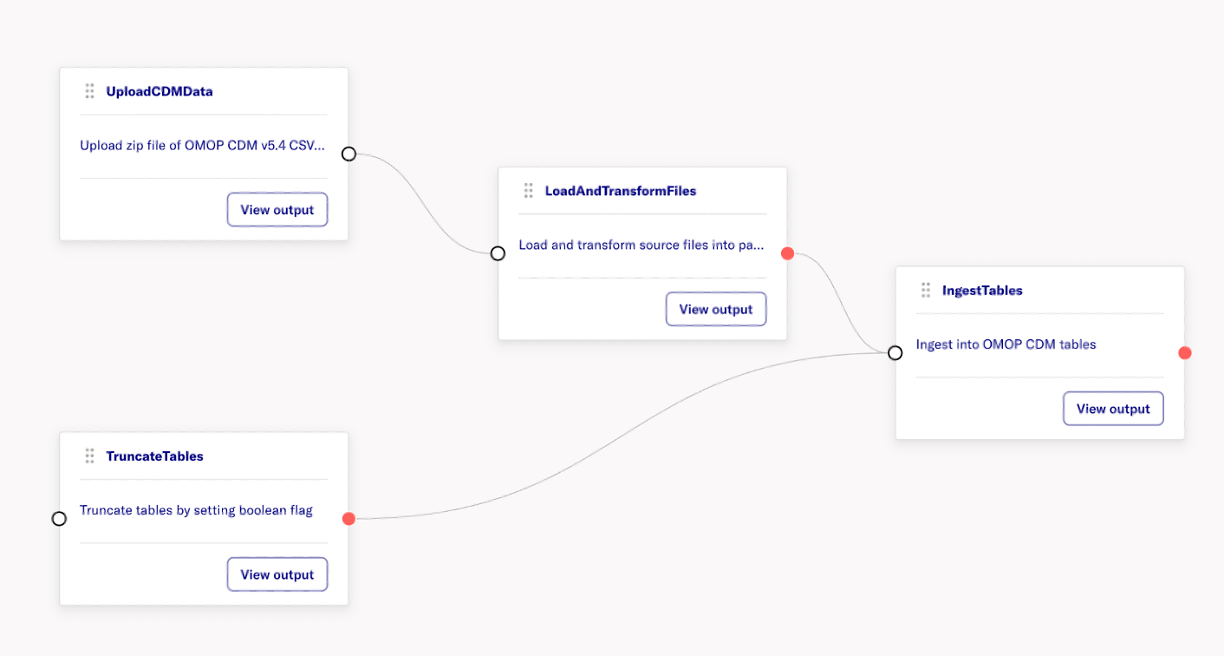
The data-load workflow based on a ready-made Data Load template in ETL. The template uploads a zip of CSVs, transforms them, optionally truncates the target tables, and ingests them.
Templates used for data load
| Templates | Shown as | Use for |
|---|---|---|
Load_OMOP_CDM_v54 | Data Load OMOP CDM v5.4 | SynPUF-1k (public download is v5.4) and v5.4 vocab |
Load_OMOP_CDM_v53 | Data Load OMOP CDM v5.3 | v5.3 CDM / vocab |
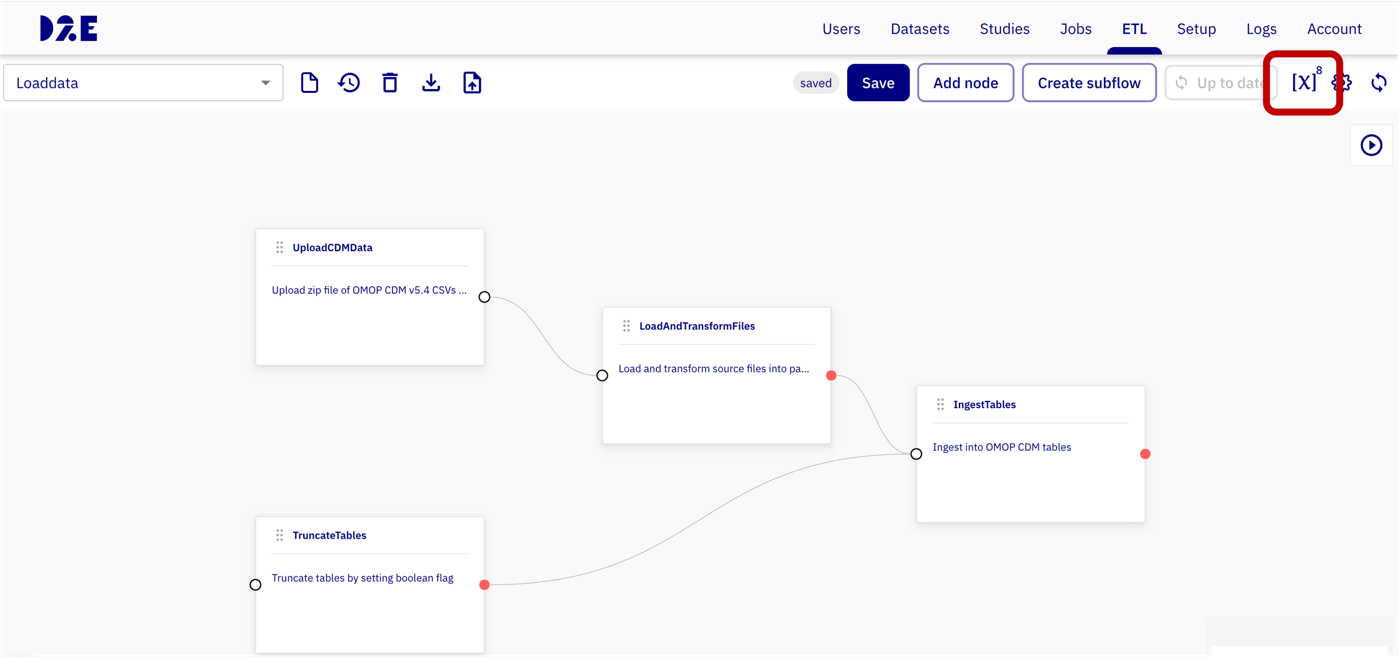
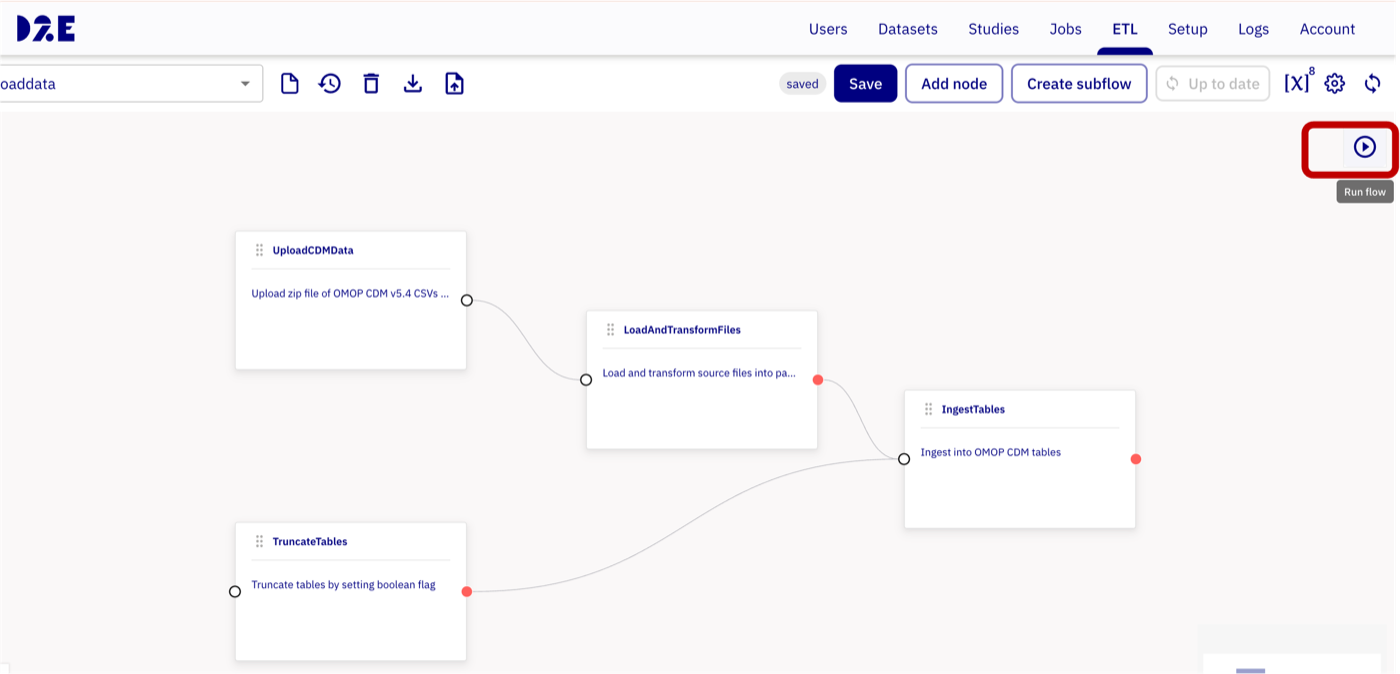
Each template is a 4-node pipeline:
UploadCDMData (zip file upload) → LoadAndTransformFiles and TruncateTables → IngestTables
Before you start
- Make sure the target database and schema to load data are ready
- The CSV files are transformed
- Refer to data download and transformation
- Zip the CSV files using
zip -r synpuf1k54.zip synpuf1k54
Steps
-
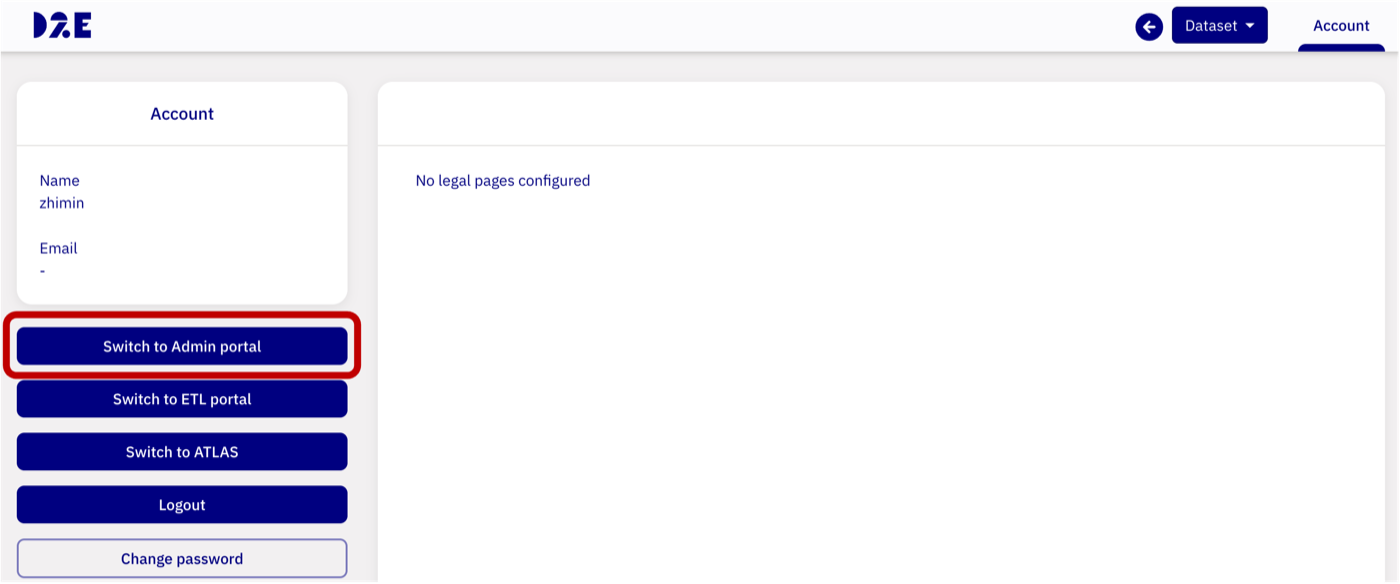
Open the Flow editor in the Admin portal → ETL

-
Create new dataflow

-
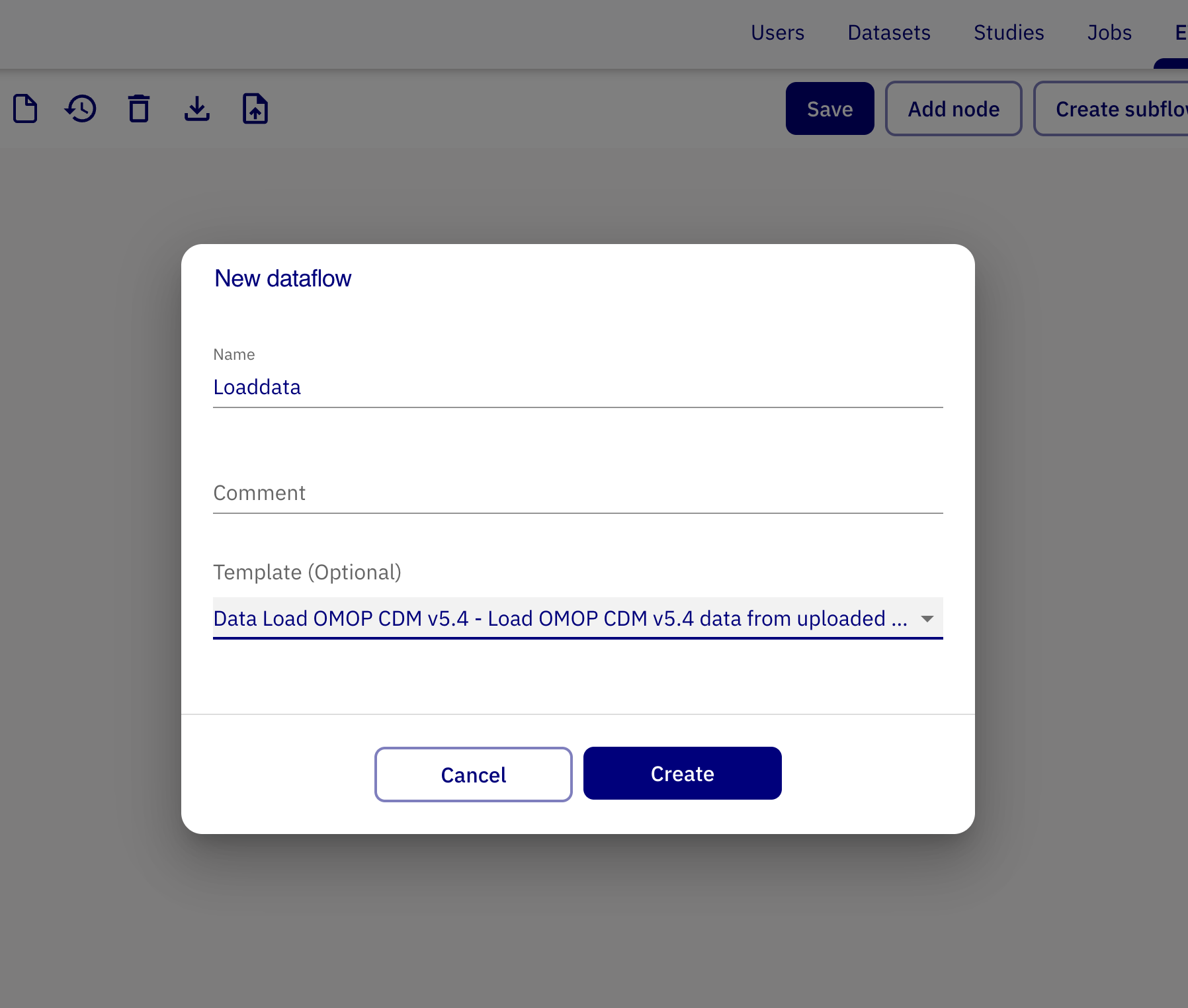
Select Data Load template:
- Enter a name (e.g.
load-synpuf1korload-vocab) and an optional Comment;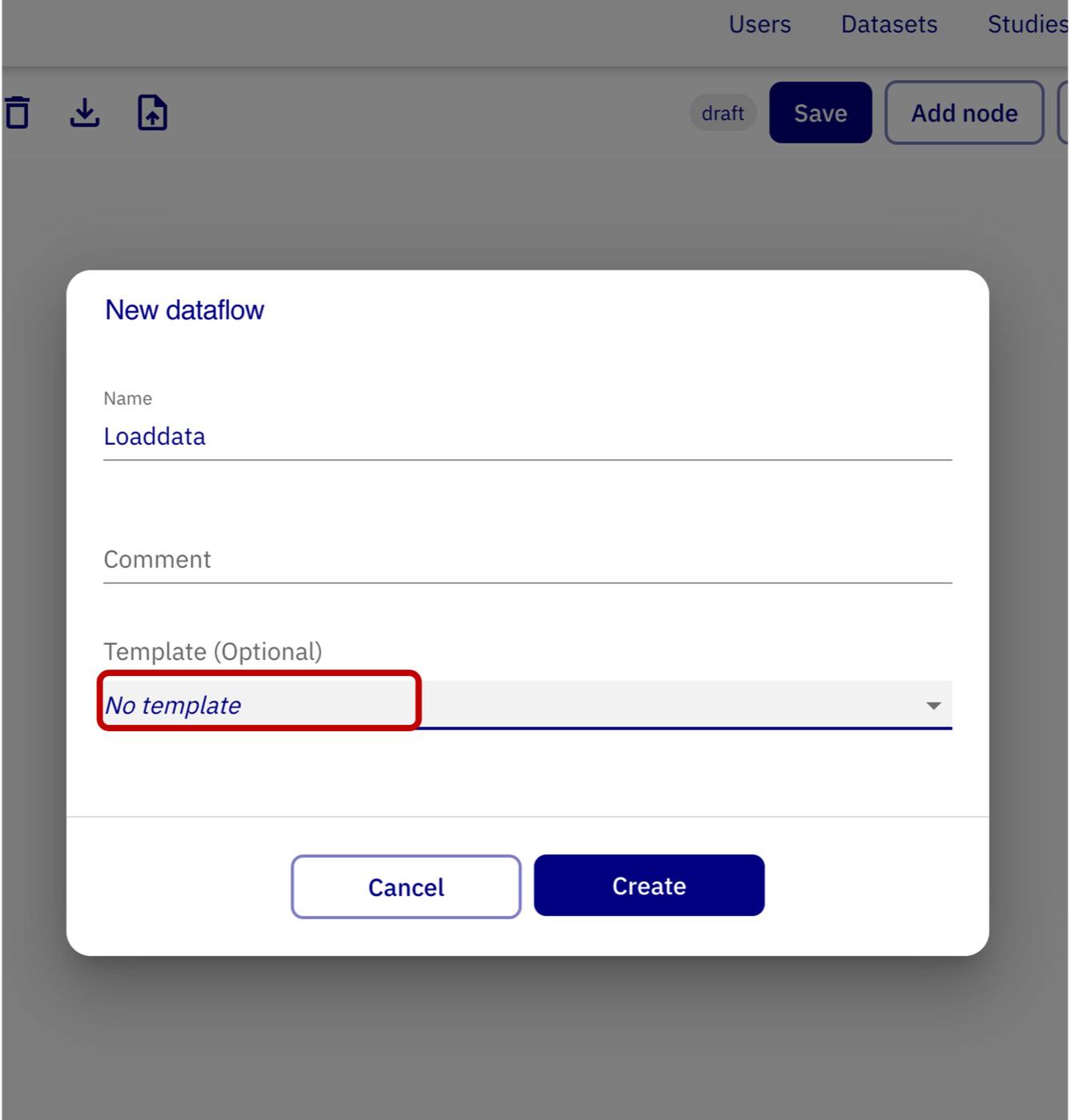
- In Template, select Data Load OMOP CDM v5.4 (or v5.3);
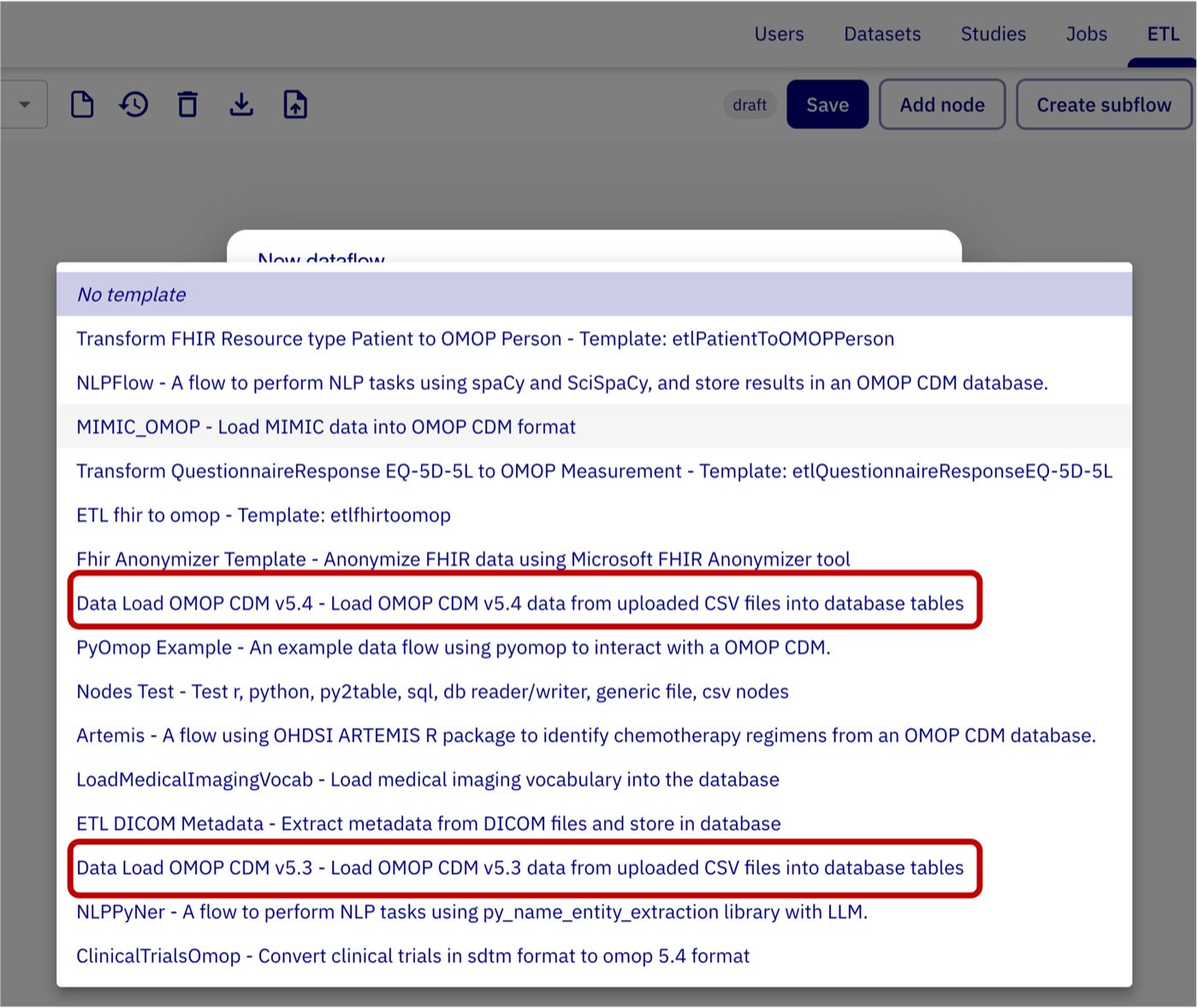
- Click Create. The canvas is built from the template.
- Enter a name (e.g.
-
Set the template Variables to point at the right database and schema
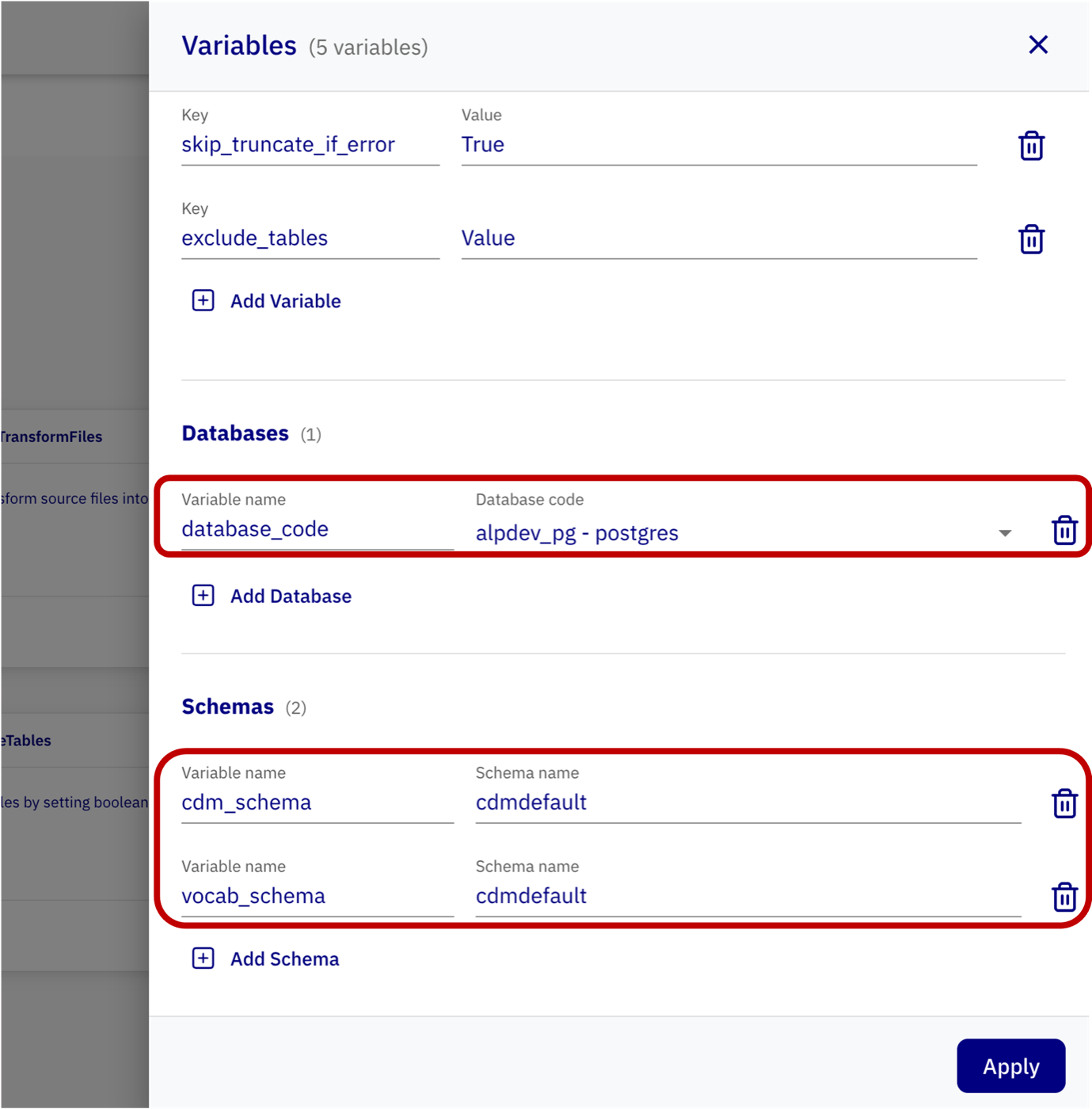
Variable Values database_codealpdev_pgcdm_schemacdmdefaultvocab_schemacdmdefaultdelimiter,encodingutf-8truncate_tablestrueexclude_tables`` *exclude_tables: if the source zip file has other tables that do not belong to OMOP CDM tables (5.3, 5.4), need to be explicitly specified e.g. exclude_tables = 'cohort,cohort_attributes'.
-
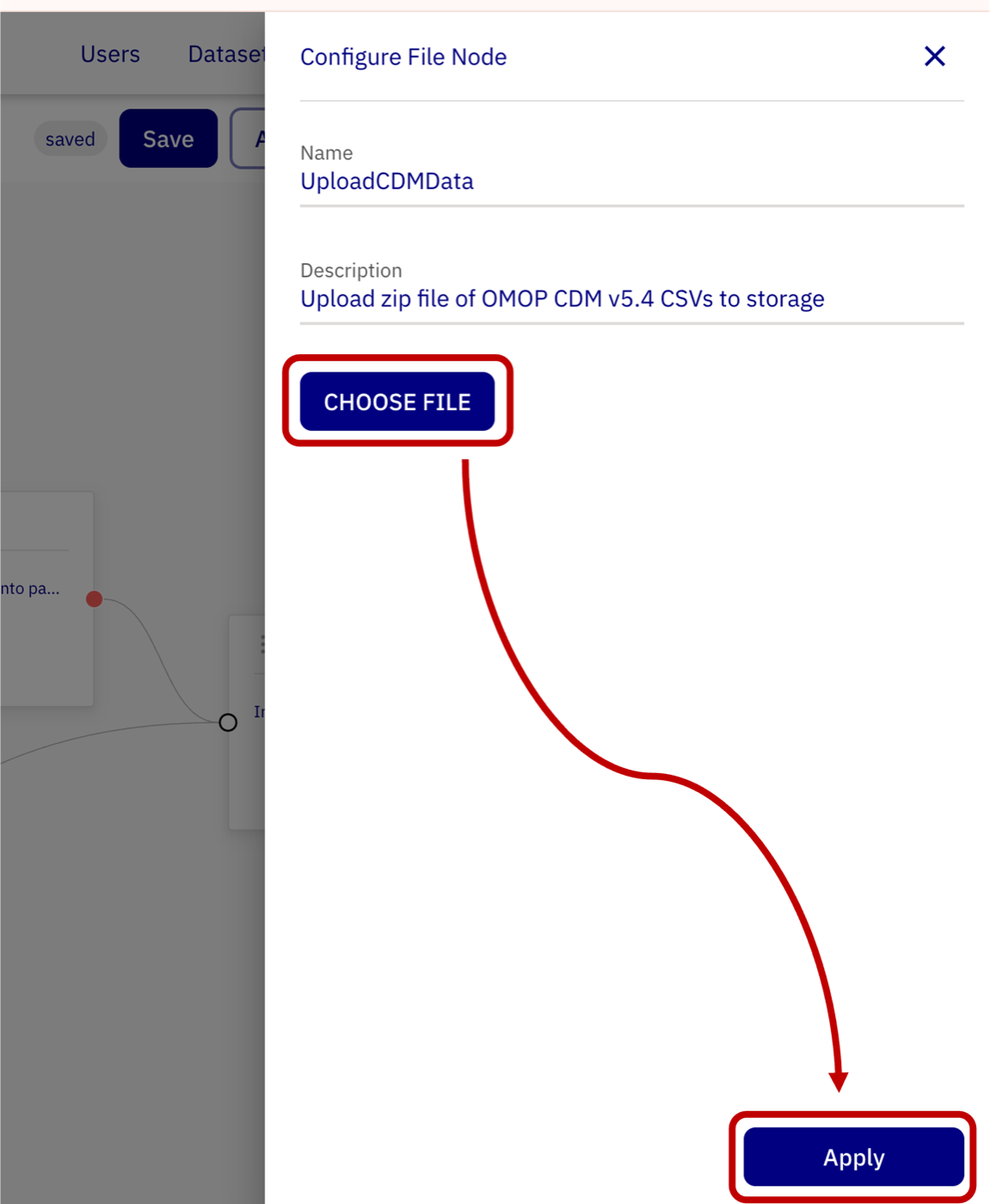
Upload the csv zip file in
UploadCDMDatanode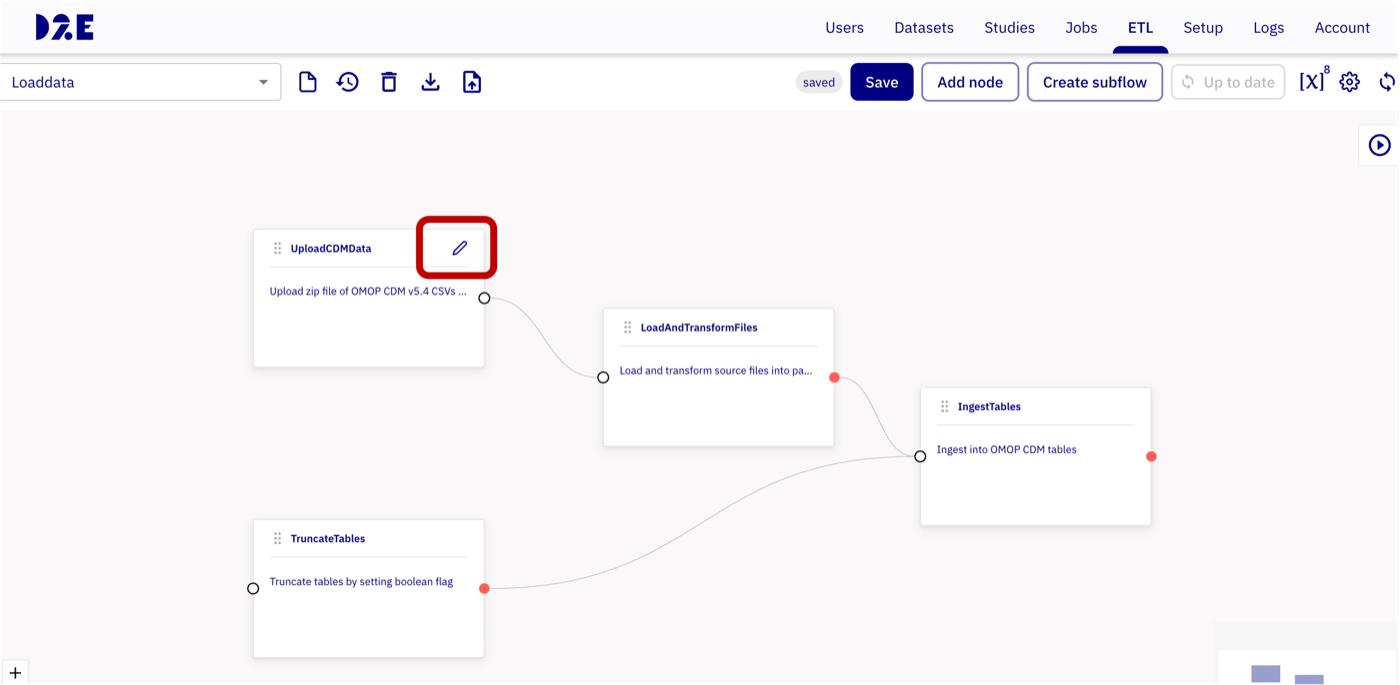
-
Running the dataflow
-
The run should take ≤10 minutes and each node should display a view output button.