Legal Documentation
Setting up legal documentation via UI
- Open the Researcher Portal and click Switch to the Admin Portal.
- In the Admin Portal click Setup
- Click the Platform content & legal texts - Configure button.
The expected display is:
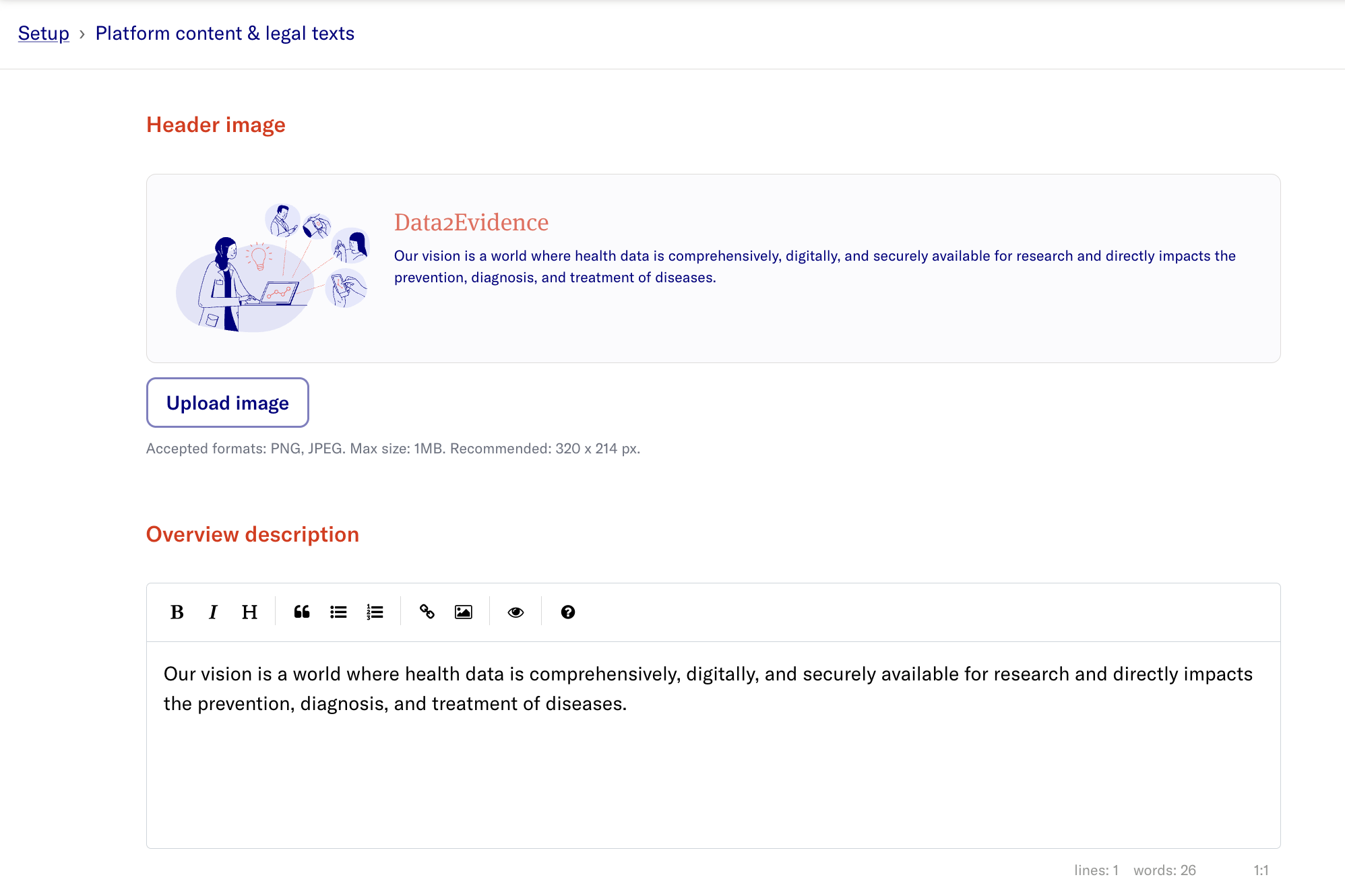
This page lets you configure the platform's header image, overview text and legal documents. The following sections are available:
- Header image - Upload a custom banner image (PNG or JPEG, max 1MB, recommended 320 x 214 px) shown on the overview page. Use Upload image to set one, or Restore default to revert to the built-in illustration. A live preview is shown above the buttons.
- Overview description - The introductory text displayed on the overview/landing page.
- Data quality description - Text describing the data quality of the platform.
- Terms of use - Your terms of use document.
- Privacy policy - Your privacy policy document.
- Imprint - Your imprint / legal notice.
- Disclaimer - A disclaimer shown to logged-in users.
Steps:
- Enter the text for each section in the respective editor using markdown format.
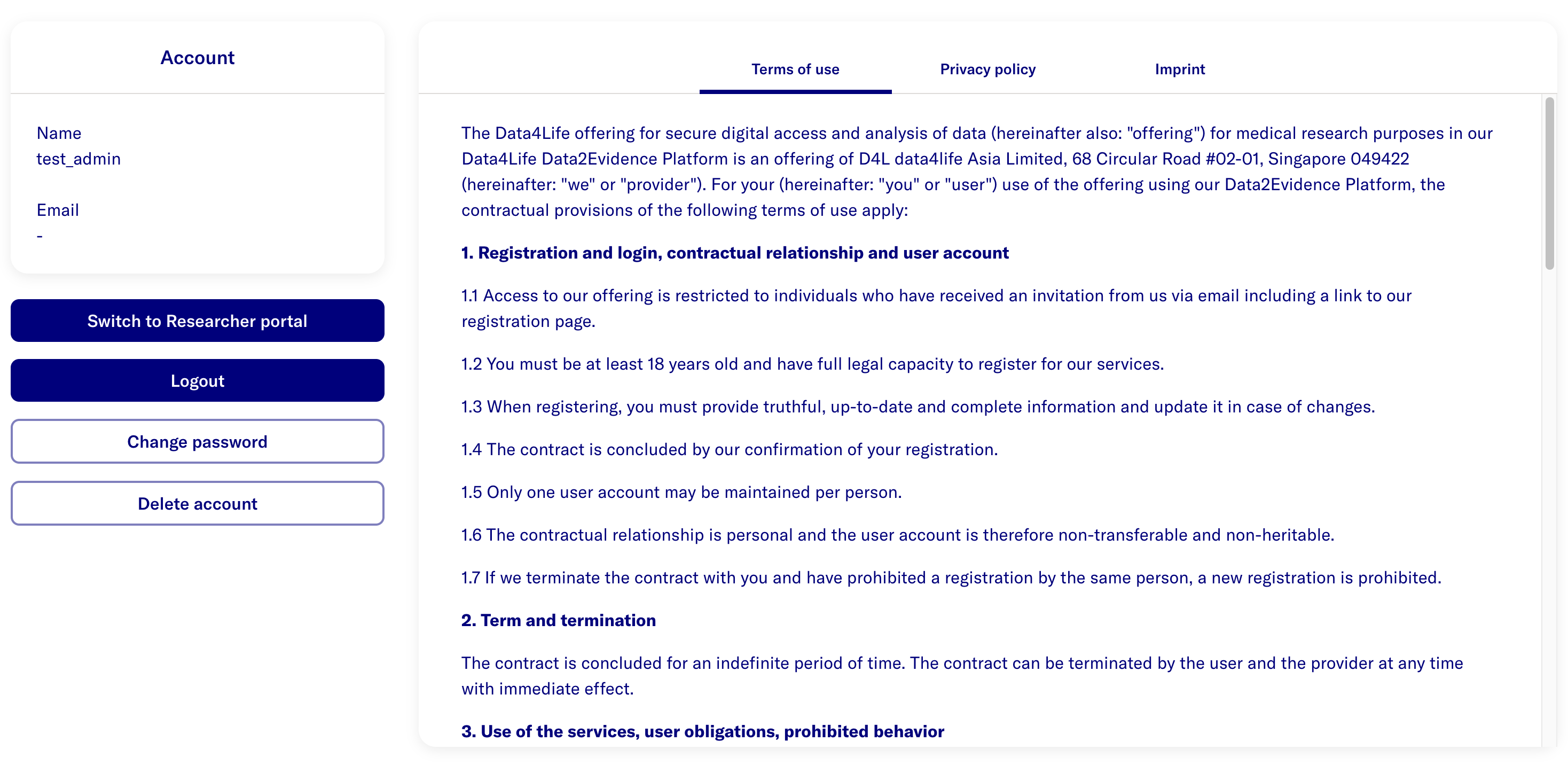
- For the Data quality description, Terms of use, Privacy policy, Imprint and Disclaimer sections, check the respective Display checkbox for that page to be displayed in the Account page.
- Once you make a change, a footer appears at the bottom of the page. Click Save to apply your changes, or Discard changes to revert them.
- Go to the Account page
The expected display is: